Bundle Headphones
Bundle Headphones
ANC Bluetooth Headphones

Over-ear sound with Active Noise Cancellation. Everything you need to pair, listen, charge, and troubleshoot your headphones.
What's in the Box
Unit at a Glance
Functions & Button Control
The Power / Multi-Function (MFB) button does different things depending on what you are doing. The same single press means Play / Pause while music is playing, but Answer / End while you are on a call. Use the mode you are in to read the right table below.
Power & Pairing
| Function | Button | Action |
|---|---|---|
| Power On / Off | MFB | Press and hold |
| Voice Assistant | MFB | Triple-click |
Audio Playback Mode
Use these while listening to music or other audio (no active call).
| Function | Button | Action |
|---|---|---|
| Play / Pause | MFB | Press once |
| Next Track | Volume Up | Press and hold |
| Previous Track | Volume Down | Press and hold |
| Volume Up | Volume Up | Press once |
| Volume Down | Volume Down | Press once |
In-Call Mode
Use these when a call is incoming or active.
| Function | Button | Action |
|---|---|---|
| Answer Incoming Call | MFB | Press once |
| End Active Call | MFB | Press once |
| Reject Incoming Call | MFB | Press and hold |
| Redial / Resume Last Call | MFB | Double-click |
| Adjust Call Volume | Volume Up / Down | Press once |
Noise Cancellation (Any Mode)
| Function | Button | Action |
|---|---|---|
| Toggle Active Noise Cancellation On / Off | ANC | Press once |
Pairing Your Headphones
No app is required. Charge the headphones fully before first use.
Hold the Power button to turn the headphones on. When powered on, they automatically enter Bluetooth pairing mode (the default mode on startup is Bluetooth, not ANC).
On your device, turn on Bluetooth, search for and select your headphones in the list of available devices.
When connected, you will hear the voice prompt "Your Bluetooth device is connected." You can now play music and take calls.
Active Noise Cancellation
Press the ANC button to turn Active Noise Cancellation on or off. When ANC is on, the LED indicator is solid green. ANC cancels up to -20 dB of outside noise and is especially effective on mid to high-frequency sounds.
Over-ear ANC works best with a full seal. Make sure the soft ear pads fully enclose your ears and the headband is adjusted snugly. The extra-soft studio-grade pads also add passive noise reduction on top of the active cancellation.
Charging Your Headphones
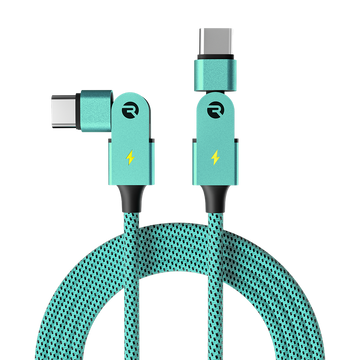
Plug the included USB-C cable into the charging port on the headphones.
Connect the other end to a computer USB port or a USB power adapter (adapter not included).
Charge fully before first use. A full charge takes about 3 hours.
Battery Life
Actual battery life varies with volume, ANC use, and environmental factors.
For safety, do not wear or play audio through the headphones while they are plugged in and charging. Keep the headphones away from rain and moisture.
Wired Listening (3.5mm Aux)
Prefer a cabled connection? Plug the included 3.5mm auxiliary cable into the headphone port on the headphones and into any 3.5mm stereo output jack on your device for wired audio.
Troubleshooting & FAQ
The headphones won't pair or connect
- Make sure the headphones are charged and powered on; on startup they enter Bluetooth pairing mode automatically.
- On your device, turn Bluetooth off and on, then select your headphones from the list of available devices.
- Remove or "forget" the headphones from any other device they have paired with, then try again.
- Keep your device within about 30 feet and in line of sight while pairing.
No sound over Bluetooth
- Confirm the headphones are connected and the volume is turned up on both the headphones and your device.
- Check that audio is routing to your headphones and not your device's speaker.
- Power the headphones off and on, then reconnect.
Noise cancellation isn't working
- Press the ANC button to turn ANC on; the LED turns solid green when it is active.
- ANC relies on a good seal. Make sure the ear pads fully surround your ears and the headband is snug.
- ANC targets steady mid and high-frequency noise; it will not remove every sound.
The headphones won't charge
- Use the included USB-C cable and a working USB port or power adapter.
- Try a different cable, port, and adapter, and inspect the cable for damage.
- Make sure the charging port is clean and the cable is fully seated.
No sound through the 3.5mm aux cable
- Check the volume on the device, the audio source, and the headphones.
- Make sure the aux cable is intact and fully plugged in at both ends.
People can't hear me on calls
- Keep the microphone area clear and your phone close by.
- Move to a quieter environment and confirm the call is routed to the headphones.
Product Specifications
Safety & Warranty
Safety Guidelines
- Do not expose the headphones to rain or moisture, to reduce the risk of fire or electric shock.
- Do not use the headphones while they are charging.
- Do not use near water, and keep away from heat sources such as radiators or stoves.
- Avoid placing the unit on soft or sensitive surfaces; use a protective barrier.
- Do not listen at high volumes for extended periods, to protect your hearing.
- Never wear headphones while operating a vehicle.
- Clean only with a dry cloth. Do not block any ventilation openings.
- Unauthorized modifications may void your authority to operate the equipment.
- Follow battery transport, shipping, and disposal regulations, and recycle batteries responsibly.
- Refer servicing to qualified personnel if the product is damaged or malfunctions.
Support
If your headphones aren't working properly, visit rayconglobal.com/support or email support@rayconglobal.com and our team will be glad to help.
Limited Warranty
Your headphones are covered by a Raycon limited warranty against defects in materials and workmanship. It does not cover damage from accident, misuse, or neglect. Visit rayconglobal.com/warranty for full details and to start a claim.
Compliance & Regulatory
FCC Compliance: This device complies with Part 15 of the FCC Rules. Operation is subject to the following two conditions: (1) this device may not cause harmful interference, and (2) this device must accept any interference received. This equipment has been tested and found to comply with the limits for a Class B digital device, providing reasonable protection against harmful interference in residential installations. Modifications not expressly approved by the party responsible for compliance could void the user's authority to operate the equipment.
EU Declaration of Conformity: Raycon declares that this radio equipment complies with Directive 2014/53/EU. CE marking conforms to the applicable Low Voltage and Electromagnetic Compatibility directives.
Trademarks: The Bluetooth word mark and logos are registered trademarks of Bluetooth SIG, Inc. USB Type-C and USB-C are registered trademarks of USB Implementers Forum. Dispose of electrical products responsibly according to local recycling guidelines.