Essential Open Earbuds full user manual
Essential Open Earbuds full user manual
Essential Open Earbuds
User Manual
What's in the Box
Unit at a Glance
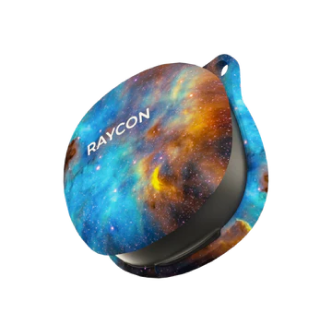
💡 The Essential Open Earbuds also support wireless (Qi) charging — just place the capsule on any compatible wireless charging pad.
Finding the Best Fit
Place the earbuds into your ears with the hooks resting comfortably over your ears. Position the speaker slightly above — not inside — your ear canal. The open design allows ambient sound through; this is intentional.
Gently rotate the earbud forward and backward as shown in the fit diagram to dial in the most comfortable and secure position. A small rotation often makes the difference between a loose and a locked fit.
Move your head side to side and shake gently — the earbuds should remain secure without adjustment. If they feel loose, try rotating slightly further forward or try wearing them at a different angle.
👓 Wear glasses or sunglasses? Position the ear hook behind your glasses arms for the most stable fit. Some frames may require a slight adjustment to the earbud angle.
🔊 These are open-ear earbuds — people nearby will be able to faintly hear your audio at higher volumes. Lower volumes or quieter environments give you the best experience without sound leakage.
Functions / Touch Controls
Both the left and right earbuds share the same touch controls. The touch surface is the flat panel on each earbud — a firm, deliberate tap registers best.
| Function | Action |
|---|---|
| Power On | Hold 5 seconds |
| Power Off | Hold 10 seconds |
| Play / Pause | Tap once |
| Skip Track | Tap twice |
| Previous Track | Tap 3 times |
| Switch Sound Profile | Tap 4 times |
| Voice Command | Tap 5 times |
| Answer Call | Tap once |
| End Call | Tap once |
| Reject Call | Tap twice (while receiving) |
📢 Volume is controlled on your connected device (phone, tablet, computer) — not on the earbuds themselves. Use your device's volume buttons or on-screen controls.
💡 Tip: A light, deliberate tap works better than a hard press. If you're accidentally triggering commands during workouts, try tapping less forcefully or from the side of the earbud.
Charging & Battery Level
USB-C or Wireless
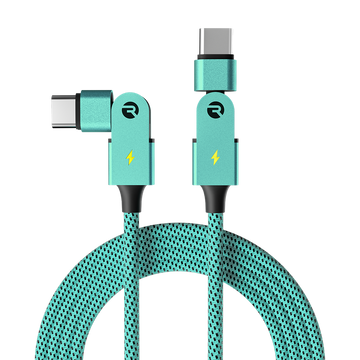
Plug the USB-C cable into the capsule port, or place the capsule on any Qi-compatible wireless charging pad. The charging LED will begin to breathe.
Capsule Charging LED
The single LED on the capsule shows battery level by color: Red (low), Amber (mid), Green (full). It breathes while charging and goes solid when complete.
Charging Your Earbuds
Place both earbuds in the capsule. The earbud LEDs will glow Amber while charging. Once fully charged, the LEDs turn off. Always seat both earbuds firmly to ensure contact.
Removing Earbuds
When earbuds are removed from a charged capsule, the capsule LED flashes Green once to confirm the current battery level.
Capsule Battery Level Indicator
LED Status Guide
Capsule LED
| LED | Meaning |
|---|---|
| Blinking Red | Capsule battery < 5% — charge immediately |
| Solid Red | Capsule battery < 25% |
| Solid Amber | Capsule battery 25%–75% |
| Breathing Amber | Earbuds are charging inside the capsule |
| Solid Green | Capsule battery > 75% — fully charged |
| Green Flash (once) | Earbuds placed into or removed from capsule |
Earbud LED
| LED | Meaning |
|---|---|
| Alternating Blue / Red | Earbuds are in Pairing Mode |
| Solid Blue | Earbuds are connected to a device |
| Amber (in capsule) | Earbuds are charging |
Connecting via Bluetooth
Remove from Capsule
Take both earbuds out of the capsule. They will power on automatically and enter Pairing Mode — you'll see alternating blue and red LED flashes.
Pair Your Device
On your phone or tablet, open Bluetooth settings and select "Raycon Essential Open Earbuds" from the list. You'll hear a confirmation tone when connected.
💡 Previously paired devices reconnect automatically when you remove the earbuds from the capsule. If they don't reconnect, ensure Bluetooth is on and the earbuds are within 45 ft (14 m) of your device.
⚠️ If the earbuds are connecting to your phone while sitting in your bag or pocket, place them fully into the capsule and close the lid — the lid closing powers them down and prevents auto-pairing.
Multipoint
Multipoint lets you stay connected to two devices at once — your phone and laptop, for example. The earbuds automatically switch to whichever device is playing audio. Both devices must be within Bluetooth range (45 ft / 14 m).
Setting Up Multipoint
Pair earbuds with your first device
Disconnect from first device in Bluetooth settings
Place earbuds in capsule, close lid
Remove earbuds — they re-enter Pairing Mode
Pair with your second device
Earbuds now auto-connect to both on startup
Troubleshooting & FAQ
The most common issues resolved by our support team and customer reviews — answered here so you don't have to wait.
Earbuds keep falling out or feel loose Most Common
- Try rotating the earbud slightly forward (toward your face) until you feel the hook lock behind your ear — a small adjustment makes a big difference.
- Ensure the speaker is positioned above your ear canal, not inside it. The hook rests over the outer ear, not inside.
- If you wear glasses, place the ear hook behind the arm of your glasses frame for a more stable anchor.
- For smaller ears: try angling the earbud downward slightly so the hook sits tighter over the top of your ear.
- For larger ears: a more upright angle often gives a more secure fit around the fuller curve of the ear.
Only one earbud will charge Common
- Make sure both earbuds are fully seated in the capsule — you should feel a slight click or resistance when they're properly placed. A loosely placed earbud will not make contact with the charging pins.
- Inspect the charging pins inside the capsule for any debris, lint, or moisture and wipe gently with a dry cloth.
- Confirm the capsule itself is charged (Amber or Green LED) — the capsule must have power to charge the earbuds.
- Try a different USB-C cable or power adapter if the capsule is also not charging.
- If one earbud consistently drains faster than the other, that is normal; they draw slightly different amounts of power during use. Both earbuds should equalize when placed in the capsule.
Capsule will not charge
- Use the included USB-C cable and ensure both ends are firmly connected (capsule port and wall adapter).
- Try a different power outlet or USB-A wall adapter rated at 5V/1A.
- If using wireless charging, ensure the capsule is centered on the charging pad and the pad itself is powered on.
- Inspect the USB-C port on the capsule for debris and clear gently with a dry toothpick if needed.
Microphone sounds robotic, echoey, or unclear on calls Common
- Ensure only one earbud is being used for the call if the other has low battery — uneven battery levels can degrade mic performance.
- Outdoors or in windy environments, turn away from the wind or cup your hand slightly around the microphone side to reduce interference.
- Try moving closer to your connected device — staying well within 15 ft (5 m) during calls improves audio stability.
- If you're on a call app (Teams, Zoom, Google Meet), check that the app's input is set to "Raycon Essential Open Earbuds" and not your device's built-in microphone.
- Restarting the earbuds (place in case, close lid, wait 10 seconds, remove) often clears temporary audio processing glitches.
Touch controls triggering accidentally or not responding
- The touch surface responds to deliberate, firm taps — not light grazes. A light touch from clothing, hair, or brushing your ear can trigger unintended commands.
- Accidentally ending calls? A single tap ends an active call, the same as Play/Pause. If this happens often, try tapping from the front edge of the earbud rather than the center.
- During workouts: sweat can occasionally activate the touch surface. Try patting the earbuds dry or adjusting your grip when changing tracks.
- If controls are completely unresponsive, try a full reset (see "Resetting Your Earbuds" below).
- Note: There is no volume control on the earbuds. Use your connected device's volume buttons or on-screen controls.
How do I control volume?
- Volume is controlled on your connected device — your phone, tablet, or computer — not on the earbuds themselves.
- Use your device's physical volume buttons or on-screen volume slider.
- For voice calls, your device's in-call volume setting is separate from media volume — adjust it during an active call using your device's volume buttons.
Bluetooth connection drops or range is short
- Stay within 45 ft (14 m) of your connected device. Walls, metal objects, and other wireless devices can reduce effective range.
- Check battery levels on both the earbuds and your device — low battery on either side weakens the Bluetooth signal.
- Move away from areas with dense Wi-Fi or Bluetooth interference (crowded gyms, offices with many devices).
- Forget the earbuds in your device's Bluetooth settings and re-pair from scratch — this resolves most persistent connection issues.
Earbuds keep connecting to my phone from inside my bag
- When earbuds are in the capsule with the lid open, they may remain powered on and connect automatically to your last paired device.
- Always close the capsule lid fully when storing — closing the lid turns the earbuds off and prevents auto-connection.
- If the lid is closed and they're still connecting, check if your device has a "Connect automatically" or "Previously connected" setting for Raycon earbuds and disable it.
People nearby can hear my music
- This is expected behavior. The Essential Open Earbuds are an open-ear design — they sit outside your ear canal, so some audio will always be audible to people nearby at higher volumes.
- Lower volumes greatly reduce sound leakage. At 40–60% volume, the audio is barely audible to others at normal conversation distance.
- For full privacy listening, consider a closed-ear Raycon model instead.
Multipoint is not working
- Confirm both devices have Bluetooth enabled and are within 45 ft of the earbuds.
- Both earbuds must be charged and not currently connected to any device before starting the multipoint setup.
- Follow the setup steps in order — you must disconnect from the first device before pairing the second.
- If multipoint stops working after an update, forget the earbuds on both devices, reset them, and re-pair both devices from scratch.
Resetting Your Earbuds
- Soft reset: Delete "Raycon Essential Open Earbuds" from Bluetooth on your device, then place both earbuds back in the capsule and close the lid.
- Hard reset: Place both earbuds in the capsule, close the lid, and wait 5–10 seconds. Re-open the lid — the earbuds will power on in fresh pairing mode.
- After resetting, re-pair as if it's a first-time setup by removing the earbuds from the capsule and selecting them in your device's Bluetooth settings.
Cleaning Instructions
- Earbuds: Use a soft, dry cloth to wipe the exterior. Avoid abrasive materials or liquid cleaners. The small mesh screen can be cleared gently with a dry soft-bristle brush.
- Charging Capsule: Wipe with a soft, dry cloth or a very lightly dampened cloth. Keep the USB-C port and charging pins dry at all times.
- Do not submerge or run under water. The IPX5 rating covers splash and sweat, not submersion.
Product Specifications
Safety & Warranty
Safety Guidelines
- Be wary of edges, uneven surfaces, and metal parts on accessories and packaging to prevent injury.
- Listen at safe volumes — prolonged high-volume listening can damage your hearing.
- Do not store in high temperatures such as a hot vehicle or in direct sunlight.
- Do not expose the earbuds or accessories to rain or other liquids for extended periods.
- Do not drop or subject the earbuds to heavy impact.
- Do not modify, repair, or dismantle the product yourself.
- Do not use any solvent or volatile liquid to clean the product.
- Do not use the product in hazardous locations.
- Do not expose the earbuds to water while charging.
- When cleaning, use only a soft dry cloth. For stains, dampen with water only.
Limited Warranty
Your Essential Open Earbuds are covered by a limited warranty. Visit rayconglobal.com/warranty for full details.
Support
If your device is not functioning properly, visit rayconglobal.com/support or email support@rayconglobal.com.
Compliance & Regulatory
FCC Warning: This device complies with Part 15 of the FCC Rules. Operation is subject to the following two conditions: (1) This device may not cause harmful interference, and (2) this device must accept any interference received, including interference that may cause undesired operation. Any changes or modifications not expressly approved by the party responsible for compliance could void the user's authority to operate the device.
This equipment has been tested and found to comply with the limits for a Class B digital device, pursuant to Part 15 of the FCC Rules. The device has been evaluated to meet general RF exposure requirements and can be used in portable exposure conditions without restriction.
ISED Canada: This device contains licence-exempt transmitter(s)/receiver(s) that comply with Innovation, Science and Economic Development Canada's licence-exempt RSS(s). This device may not cause interference and must accept any interference, including interference that may cause undesired operation. The device has been evaluated to meet general RF exposure requirements and can be used in portable exposure conditions without restriction.
RDID: D715-25E-0325