Raycon AI Notetaker – Volledige gebruikershandleiding
Raycon AI Notetaker – Volledige gebruikershandleiding
Hulp en documentatie
Installatiehandleidingen, uitleg over functies en antwoorden op veelgestelde vragen.
Paragraaf 01
In de doos
Alles wat je nodig hebt om aan de slag te gaan, zit erbij.
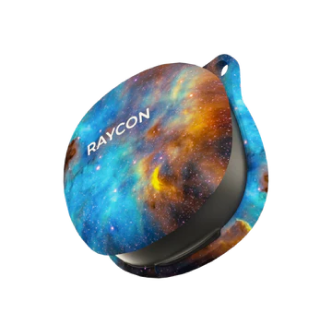
Raycon AI Notetaker-apparaat
Verkrijgbaar in Carbon Black, Royal Blue en Blush Violet
Magnetische oplaadkabel
Eigen magnetische aansluiting. Het duurt ongeveer 1 uur en 40 minuten om het apparaat volledig op te laden. Het apparaat schakelt automatisch uit zodra het opladen begint en kan tijdens het opladen niet worden ingeschakeld.
Bevestiging met magnetische ring
Meegeleverd voor gebruik met telefoons of hoesjes die niet geschikt zijn voor MagSafe. Bevestig de ring aan je telefoon of telefoonhoesje voor een stevige magnetische bevestiging.
Snelstartgids
In de doos zit een gedrukte snelstartgids met installatie-instructies om u op weg te helpen.
Paragraaf 02
Overzicht van de hardware
Technische specificaties, bedieningselementen en weergavestanden.

Maat
3,46 × 2,17 × 0,19 inch
Gewicht
54g
Batterij · convo
60 uur
Batterij · bellen
40 uur
Oplaadtijd
~1 uur en 40 min.
Opslag
64 GB
Bluetooth
5,4 (BLE)
Audiobereik
8 meter
Microfoons
4 MEMS + 1 VPU
Bedieningselementen
Het apparaat heeft één knop en één fysieke modusschakelaar.

Multifunctionele knop
De ronde knop aan de rechterkant.
SNELBERICHT
Uit de stand-by-modus halen
2 SECONDEN INGEDRUKT HOUDEN
Opname starten / stoppen
4 SECONDEN INDRUK HOUDEN
Uitschakelen
2 SECONDEN INGEDRUKT HOUDEN
Inschakelen
Modusschakelaar
Fysieke schakelaar aan de linkerkant van het apparaat. Deze moet worden ingesteld voordat u begint met opnemen. Als u de instelling tijdens een lopende opname wijzigt, wordt de opname gestopt en begint er een nieuwe.
BEL
Zet de tuimelschakelaar in de stand OMHOOG voor de gespreksmodus. Te gebruiken bij het opnemen van telefoongesprekken — maakt gebruik van de VPU-trillingsmicrofoon. Het apparaat moet rechtstreeks op de telefoon worden bevestigd en de telefoon moet tegen het oor worden gehouden.

GESPREK
Zet de tuimelschakelaar in de stand OMLAAG voor de gespreksmodus. Te gebruiken bij het opnemen van persoonlijke gesprekken — maakt gebruik van MEMS-microfoons. Neemt geluid op tot op een afstand van 8 meter.

Extra knopfuncties
Als je meerdere keren op de knop drukt, worden er verschillende acties geactiveerd. Zorg ervoor dat het apparaat eerst is ingeschakeld.
Controleer de status van de batterij en Bluetooth
Druk één keer op de knop. Het apparaat bladert door de pictogrammen die de huidige opnamemodus, het batterijniveau en de status van de Bluetooth-verbinding weergeven.
Zoek je serienummer op
Druk vier keer op de knop. Er verschijnt een QR-code op het LCD-scherm — scan deze met de camera van je telefoon om het serienummer van het apparaat te bekijken.
De firmwareversie opzoeken
Druk 5 keer op de knop. Op het LCD-scherm wordt de firmwareversie weergegeven in de notatie FW x.x.x.
Het apparaat opnieuw instellen
Druk 7 keer op de knop. Op het LCD-scherm verschijnt „Reset?“ — houd de knop 2 seconden ingedrukt om te bevestigen. Tijdens het resetten verschijnt „Resetting“ op het scherm en zodra het proces is voltooid, verschijnt „Reset Complete“. Het apparaat keert terug naar de stand-bymodus.
Status van het LCD-scherm
Het LCD-scherm bevindt zich aan de voorkant van het apparaat en geeft de huidige status weer. Hieronder ziet u hoe elke status eruitziet.

Inschakelen
Op het LCD-scherm verschijnt "Hello!", waarna het apparaat in de stand-bymodus gaat en het scherm wordt uitgeschakeld.

Uitschakelen
Op het LCD-scherm verschijnt "Goodbye!", waarna het scherm wordt uitgeschakeld.

Oproepmodus
Op het LCD-scherm staat "Call" met daarboven een pictogram van een telefoon.

Gespreksmodus
Op het LCD-scherm staat "Conversation" met daarboven een pictogram van mensen.

Opname
Op het LCD-scherm wordt gedurende de opname "Opname..." weergegeven.

Opname opgeslagen
Op het LCD-scherm verschijnt gedurende 1 seconde de melding „Opgeslagen.“ om aan te geven dat de opname is beëindigd en is opgeslagen.

Verbonden via Bluetooth
Op het LCD-scherm wordt het symbool voor een Bluetooth-verbinding weergegeven.

Bluetooth-verbinding verbroken
Op het LCD-scherm wordt het symbool weergegeven dat aangeeft dat Bluetooth niet is verbonden.
Paragraaf 03
Aan de slag
Zorg dat je alles klaar hebt staan voordat je je eerste opname maakt. Dit duurt ongeveer 5 minuten.
Laad het apparaat op
Laad het apparaat vóór het eerste gebruik op met de meegeleverde oplaadkabel. Het duurt ongeveer 1 uur en 40 minuten om het apparaat volledig op te laden. Het apparaat schakelt tijdens het opladen automatisch uit.
Download de Raycon Notes-app
Zoek naar "Raycon Notes" in de App Store of Google Play, of scan de onderstaande QR-code.

Maak je account aan
Open de Raycon Notes-app en volg de stappen in de app om je account aan te maken.

Schakel je Notetaker in
Druk op de knop. Het LCD-scherm gaat aan en er verschijnt „Hello!“ — dit betekent dat het apparaat klaar is om verbinding te maken.

Sluit het apparaat aan
Zorg ervoor dat je Notetaker is ingeschakeld. Open de Raycon Notes-app en volg de instructies om via Bluetooth te koppelen — de app helpt je bij het inschakelen van Bluetooth, het vinden van je apparaat en het bevestigen van de verbinding.

Bevestig aan je telefoon
Bevestig de Notetaker aan de achterkant van je MagSafe-compatibele telefoon of telefoonhoesje. Bij telefoons en hoesjes die niet MagSafe-compatibel zijn, bevestig je eerst de meegeleverde magnetische ring aan je telefoon of hoesje en vervolgens de Notetaker aan de ring.
Paragraaf 04
Opname
De Notetaker neemt twee soorten geluid op. Gebruik de modusschakelaar om de juiste modus te selecteren voordat u begint.
Gespreksmodus — audio bij persoonlijk contact
Plaats het apparaat
Plaats het apparaat op een vlakke ondergrond of laat het aan je telefoon bevestigd. Het bereik voor geluidsopname bedraagt maximaal 8 meter.
Begin met opnemen
Houd de knop 2 seconden ingedrukt. Het apparaat trilt en op het LCD-scherm verschijnt „Opname...“ ter bevestiging.

Opname stoppen
Houd de knop opnieuw 2 seconden ingedrukt. Het apparaat trilt, op het LCD-scherm verschijnt „Opgeslagen“ en het apparaat keert vervolgens terug naar de stand-bymodus. De app hoeft niet geopend te zijn om op te nemen.

Gespreksmodus — opname van telefoongesprekken
Bevestig de Notetaker aan je telefoon
Het apparaat moet tijdens het gesprek fysiek zijn aangesloten. De VPU-microfoon maakt gebruik van trillingsdetectie om beide kanten van het gesprek via de behuizing van de telefoon op te vangen.
Houd de telefoon zoals gewoonlijk tegen je oor
Gebruik tijdens het opnemen van een gesprek geen Bluetooth-oordopjes, hoofdtelefoons of luidsprekers — deze zorgen ervoor dat het apparaat geen trillingen kan detecteren, waardoor de geluidsopname onvolledig wordt.
Opname starten en stoppen
Houd de knop 2 seconden ingedrukt om te starten, houd hem 2 seconden ingedrukt om te stoppen — net als in de gespreksmodus.
Opnames overzetten naar de app
Open de app als het apparaat in de buurt is
Opnames worden automatisch via Bluetooth gesynchroniseerd zodra het apparaat is verbonden. Let op: het overzetten van langere opnames kan enkele minuten duren.
Paragraaf 05
Transcripties en samenvattingen
Transcriptie en samenvatting gebeuren niet automatisch. Je kunt zelf kiezen welke opnames je wilt laten verwerken, zodat je zelf kunt bepalen hoe je je uren voor samenvattingen en transcripties inzet.
Kies een opname
Tik in je lijst met opnames op de opname die je wilt bewerken.

Tik op 'Audio samenvatten'
De verwerking wordt gestart. Hiervoor is een actieve internetverbinding nodig — de transcriptie vindt plaats in de cloud. De verwerkingstijd is afhankelijk van de lengte van de opname.

Bekijk je cijferlijst
Met AI verbeterd wat betreft interpunctie en opmaak. Dankzij sprekerherkenning (diarization) wordt elke spreker in gesprekken met meerdere personen aangeduid als Spreker 1, Spreker 2, enzovoort.

Bekijk je samenvatting
Door AI gegenereerde samenvatting van de opname. In deze samenvatting vind je de belangrijkste punten uit het gesprek.

Kopiëren of delen
Je kunt het transcript en de samenvatting naar het klembord van je telefoon kopiëren om ze elders te plakken. Je kunt het audiobestand of het transcript en de samenvatting ook delen via de deel-functie in de app. Het transcript en de samenvatting worden als één bestand gedeeld in het formaat van jouw keuze : PDF, TXT, DOCX of MD. Het audiobestand wordt als MP3 gedeeld.
Taalondersteuning
Transcripties zijn beschikbaar in meer dan 100 talen. Samenvattingen worden vrijwel altijd in het Engels gegenereerd. De nauwkeurigheid van de transcripties verschilt per taal — we raden u aan de dienst eerst in de door u gewenste taal te testen voordat u er voor kritieke toepassingen op vertrouwt.
Paragraaf 06
Slimme onderwerpen
Onderwerpen zijn labels die je zelf kiest. De app voorziet je gesprekken automatisch van relevante onderwerpen uit je lijst met geselecteerde onderwerpen. Gebruik de onderwerpen om al je gesprekken te filteren.
Een onderwerp aanmaken
Kies een onderwerp uit de suggesties in de app of voer zelf een woord in. De app markeert automatisch alle opnames waarin de betreffende woorden voorkomen.

Bladeren op onderwerp
Tik op een onderwerp om alle opnames met dat label op één plek te bekijken. Je kunt ook zien welke labels aan een gesprek zijn toegekend door de gesprekslijst op je startscherm te bekijken of door op het tabblad ‘Onderwerpen’ te klikken.

Paragraaf 07
Opnames beheren
Hoe je opnames, transcripties en je accountgegevens kunt verwijderen.
Een opname of transcript verwijderen
Tik in de app op de opname die je wilt verwijderen. Tik op het menu met de drie puntjes rechtsboven in het scherm en selecteer vervolgens ‘Verwijderen’. Hiermee worden de audio en eventuele bijbehorende transcriptie en samenvatting verwijderd.
Volledige verwijdering van account en gegevens
Om al je gegevens te verwijderen en je account te sluiten, stuur je een e-mail naar privacy@rayconglobal.com met als onderwerp „Verzoek tot verwijdering van account“. Alle gegevens worden binnen 30 dagen verwijderd (14 dagen voor inwoners van de EU en Canada).
Paragraaf 08
Privacy en gegevens
Hoe uw gegevens worden opgeslagen, beveiligd en verwerkt.
De audio blijft op je apparaat staan
Audiobestanden worden nooit naar de servers van Raycon geüpload. Ze worden lokaal op je telefoon opgeslagen — je kunt ze op elk moment via de app verwijderen.
Transcripties en samenvattingen staan in de cloud
Opgeslagen via AWS (US-East), versleuteld in rust. Zowel de gratis als de betaalde abonnementen bieden onbeperkte cloudopslag. Transcripties en samenvattingen blijven in de cloud bewaard, tenzij u verzoekt om verwijdering ervan.
AI-verwerking door derden
AssemblyAI — transcriptie en sprekerherkenning.
OpenAI — samenvattingen.
Geen van beide aanbieders gebruikt uw gegevens om AI-modellen te trainen. Raycon heeft zich hiervoor afgemeld. Beide voldoen aan de SOC 2 Type II-norm.
Wetgeving inzake opnames en toestemming
De wetgeving verschilt per locatie. De AI Notetaker neemt geluid op en zet dit om in tekst op aanwijzing van de gebruiker. Gebruikers zijn zelf volledig verantwoordelijk voor het verkrijgen van de vereiste toestemming van deelnemers en voor het naleven van de geldende lokale, provinciale en internationale wetgeving. Raycon controleert, bewaakt of handhaaft de naleving van de wetgeving inzake opnames niet.
Privacybeleid en gegevensbeschermingsovereenkomsten
Alle details vindt u op rayconglobal.com/pages/privacy-policy. Voor gegevensverwerkingsovereenkomsten kunt u een e-mail sturen naar privacy@rayconglobal.com.
Paragraaf 09
Problemen oplossen
Veelvoorkomende problemen en hoe je ze kunt oplossen. Kom je er nog steeds niet uit? Stuur dan een e-mail naar support@rayconglobal.com
Mijn apparaat gaat niet aan ▼
Laad het apparaat op met de meegeleverde magnetische kabel. Het apparaat kan tijdens het opladen niet worden ingeschakeld — koppel de kabel los zodra het apparaat is opgeladen en probeer het opnieuw. Controleer of de kabel goed in de magnetische aansluiting zit.
Mijn apparaat maakt geen verbinding met de app ▼
Zorg ervoor dat Bluetooth op je telefoon is ingeschakeld en dat het apparaat is ingeschakeld. Sluit de Raycon Notes-app geforceerd af en open deze vervolgens opnieuw. Als het verbinden niet lukt, houd dan de knop op je Notetaker 5 seconden ingedrukt om het apparaat uit te schakelen, schakel het vervolgens weer in en probeer opnieuw verbinding te maken.
Mijn opname is niet opgeslagen ▼
Controleer of je de opname correct hebt gestopt door de knop 2 seconden ingedrukt te houden — het apparaat zou moeten trillen en op het LCD-scherm zou ‘Opgeslagen’ moeten verschijnen. Als de batterij tijdens het opnemen leeg is geraakt, kan het bestand onvolledig zijn. Controleer de app na het synchroniseren.
Mijn opnames lopen niet synchroon ▼
Zorg ervoor dat Bluetooth op je telefoon is ingeschakeld en dat de Notetaker is verbonden met de app. Open de app en wacht tot de bestandsoverdracht begint. Op het startscherm van de app kun je de status van de bestandsoverdracht zien. Als het synchroniseren nog steeds niet begint, sluit de app dan geforceerd af en open deze opnieuw, terwijl het apparaat in de buurt is en is ingeschakeld.
Ik heb slechts één kant van een telefoongesprek opgenomen ▼
Controleer of de modusschakelaar vóór het opnemen op ‘Call’ stond. Het apparaat moet fysiek aan je telefoon zijn bevestigd. Houd de telefoon tegen je oor — gebruik geen Bluetooth-oordopjes, de luidspreker of een hoofdtelefoon. Zorg ervoor dat het apparaat stevig magnetisch contact maakt met de behuizing van de telefoon.
De geluidskwaliteit is slecht ▼
Voor het opnemen van gesprekken: Plaats het apparaat zo dicht mogelijk bij de sprekers op een vlak oppervlak. Zorg ervoor dat de microfoon niet wordt afgedekt. Beperk achtergrondgeluiden.
Voor het opnemen van gesprekken: Zorg ervoor dat het apparaat stevig is bevestigd en dat er geen openingen zijn. Hoe meer contact er is tussen het apparaat en de behuizing van de telefoon, hoe beter de trillingsdetectie.
De knop „Audio samenvatten” werkt niet ▼
Voor transcriptie en samenvatting is een actieve internetverbinding vereist. Controleer je wifi- of mobiele signaal. Controleer ook of je nog transcriptie-uren over hebt binnen je maandelijkse limiet — als je limiet is bereikt, wordt de verwerking niet voltooid. Bekijk je resterende uren in je profiel. Als de knop nog steeds niet reageert, sluit de app dan geforceerd af, open deze opnieuw en probeer het nog eens.
Mijn transcriptie klopt niet ▼
De nauwkeurigheid hangt af van de opnamekwaliteit. Achtergrondgeluiden, sprekers die elkaar in de weg zitten en een laag volume hebben allemaal een negatieve invloed op de nauwkeurigheid. Controleer of je de juiste modus hebt gebruikt en of het apparaat op de juiste plek is geplaatst. De nauwkeurigheid varieert ook per taal — transcripties in andere talen dan het Engels kunnen, afhankelijk van de taal, minder betrouwbaar zijn.
Ik heb mijn limiet voor transcripties/samenvattingen bereikt ▼
Elk abonnement bevat een maandelijks quotum voor transcriptie en samenvattingen. Zodra dit quotum is bereikt, kun je opnames nog steeds uploaden en opslaan in de app, maar ze kunnen pas weer worden samengevat of getranscribeerd als het quotum is gereset of als je een upgrade uitvoert. Ga naar je profiel in de Raycon Notes-app om je resterende uren te bekijken of een upgrade uit te voeren.
Mijn apparaat sluit niet goed aan op mijn telefoon ▼
Het apparaat wordt magnetisch bevestigd aan MagSafe-compatibele telefoons. Voor telefoons die niet met MagSafe compatibel zijn, gebruik je de meegeleverde magnetische bevestigingsring.
- Zorg ervoor dat het bevestigingsoppervlak schoon en vrij van vuil is.
- Gebruik geen erg dikke hoesjes — die verminderen de magnetische hechting.
- Als u een magnetische ring gebruikt, plaats het apparaat dan in het midden boven de ring voor de sterkste verbinding.
Productoverzicht
Hardware
Gratis versus Premium
- Raycon Notes Free — 5 uur per maand
- Raycon Notes Premium Maandelijks — $15,99/maand — 25 uur/maand
- Raycon Notes Premium Jaarabonnement — $99,99/jaar — 25 uur/maand
Transcripties en aantekeningen
Taalondersteuning
Privacy en gegevens