Raycon Bone Conduction Headphone Full User Manual
Raycon Bone Conduction Headphone Full User Manual
Your complete guide to setup, controls, charging, multipoint connectivity, and getting the most from your Raycon Bone Conduction Headphones.

What's in the Box

| Bone Conduction Headphones | The headphones |
|---|---|
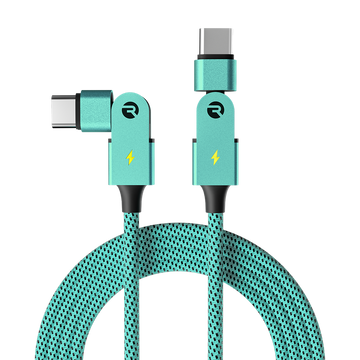
| Magnetic Charging Cable | USB magnetic attachment cable |
| Quick Start Guide & Compliance Booklet | Printed setup instructions and regulatory information |
Unit at a Glance

| 1. Microphone | Front-facing microphone for calls |
|---|---|
| 2. LED Status Indicator | Shows power, charging, and pairing status |
| 3. Magnetic Charging Port | Pogo-pin magnetic charging connection |
| 4. Volume (+) Button | Increase volume, also used for next track |
| 5. Volume (-) Button | Decrease volume, also used for previous track |
| 6. Microphone | Secondary microphone for noise cancellation on calls |
Controls & Functions
The headphones use three control points: the M (multifunction) button and the Volume +/- buttons.

M Button (Multifunction)
| Action | How |
|---|---|
| Power On | Hold for 2 seconds
|
| Power Off | Hold for 3 seconds
|
| Play / Pause | Tap once
|
| Voice Assistant | Tap 3 times
|
| Answer Call | Tap once (while receiving a call) |
| End Call | Tap once (during a call) |
| Reject Call | Hold for 1 second (while receiving a call) |
Volume Buttons
| Action | How |
|---|---|
| Volume Up | Tap Volume (+) once
|
| Volume Down | Tap Volume (-) once
|
| Next Track | Hold Volume (+) for 2 seconds
|
| Previous Track | Hold Volume (-) for 2 seconds
|
Connecting via Bluetooth
- Enter pairing mode. Long press the M button for 2 seconds. The headphones will power on and enter pairing mode - the LED will blink red and blue alternately. "Raycon Bone Conduction" will appear in your device's Bluetooth list.
- Pair from your device. Select "Raycon Bone Conduction" from your phone, tablet, or laptop's available Bluetooth devices. Confirm the pairing request if prompted.
- Connection confirmed. The LED will stop blinking and you'll hear a tone confirming the connection is active.
Charging
- Connect the magnetic charging cable. Align the magnetic cable with the charging pins on the headphones. The magnets will snap the cable into place. The cable attaches in one direction only - if it doesn't snap, flip it and try again.
- Plug into a power source. Connect the USB end to a computer, USB wall adapter, or power bank.
- Verify the connection. The LED will turn solid red to indicate charging is in progress. Once fully charged, the LED turns solid blue.
- Charging time: A full charge takes approximately 1.5 to 2 hours and provides about 14 hours of playback.

LED Status
| LED Behavior | Meaning |
|---|---|
| Blinks blue | Power on |
| Blinks red | Power off |
| Constant red | Charging |
| Constant blue | Fully charged |
| Blue and red alternating | Pairing mode |
Choosing the Right Style
Your Bone Conduction Headphones can be worn in two positions to suit different environments.

Immersive Style
Best for noisy environments: commuting, markets, cycling. Rotates the transducer closer to the ear canal for more sound isolation.

Open Style
Best for active use: running, office, gym, hiking. Keeps ears open for full situational awareness while listening.
Multipoint
Multipoint lets you connect your headphones to two devices at the same time - for example, your phone and laptop. Audio switches automatically to whichever device is playing, so you can move between a workout playlist and work calls without disconnecting and reconnecting.
How to Set Up Multipoint
- Pair with your first device (e.g., your smartphone) using the standard Bluetooth pairing process.
- Disconnect the headphones from your first device using that device's Bluetooth settings. The headphones will re-enter Pairing Mode.
- Pair with your second device (e.g., your laptop) via its Bluetooth settings.
- Turn off the headphones and wait 5 seconds, then turn them back on.
- Done. The headphones will now connect to both devices when powered on. Audio plays from whichever device is active.
Troubleshooting
Specifications
| Model | RBB842 |
|---|---|
| Bluetooth Pairing Name | Raycon Bone Conduction |
| Bluetooth Version | 5.4 |
| Bluetooth Range | 33 feet (10 meters) |
| Battery Capacity | 180 mAh |
| Total Play Time | Approximately 14 hours |
| Charging Time | Approximately 2 hours |
| Charging Method | Magnetic pogo-pin cable |
| Power Input | DC 5V / 1A |
| Supported Codecs | SBC, AAC |
| Sensitivity | 91 +/- 3 dB |
| Frequency Response | 20 Hz - 20 kHz |
| IP Rating | IP68 |
| RDID | D842-24E-0824 |
Safety & Compliance
Safety Guidelines
Listen at proper volume levels to protect your hearing. Do not store in high temperatures such as in a hot vehicle or direct sunlight. Do not expose the headphones or supplied parts to rain or liquids for extended periods. Do not drop or cause undue impact. Do not modify, repair, or dismantle the product. Do not use diluents or volatile liquids to clean the product. Do not use in hazardous locations.
Ensure all port covers are securely closed if exposing the headphones to liquid. Do not expose the headphones to water while charging. When cleaning, use a soft dry cloth only - anything else may dissolve the finish or damage the plastic.
FCC Compliance
This device complies with Part 15 of the FCC Rules. Operation is subject to two conditions: (1) this device may not cause harmful interference, and (2) this device must accept any interference received, including interference that may cause undesired operation. Any changes or modifications not expressly approved by the party responsible for compliance could void the user's authority to operate the device.
IC Compliance
This device contains license-exempt transmitter(s)/receiver(s) that comply with Innovation, Science and Economic Development Canada's licence-exempt RSS(s). This device may not cause interference and must accept any interference, including interference that may cause undesired operation.
Warranty & Support
Your Bone Conduction Headphones are covered by a limited warranty. Visit rayconglobal.com/warranty for details.