Raycon AI Notetaker Full User Manual
Raycon AI Notetaker Full User Manual
Help & documentation
Setup guides, feature walkthroughs, and answers to common questions.
Section 01
In the box
Everything you need to get started is included.
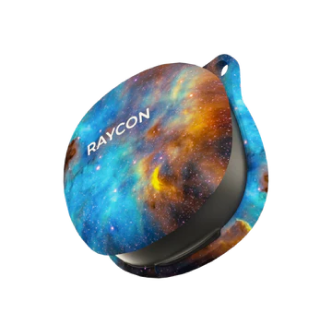
Raycon AI Notetaker device
Available in Carbon Black, Royal Blue, and Blush Violet
Magnetic charging cable
Proprietary magnetic connector. Full charge takes approximately 1 hour 40 minutes. The device powers off automatically when charging begins and cannot be turned on while charging.
Magnetic ring attachment
Included for use with non-MagSafe phones or cases. Attach the ring to your phone or phone case to enable a secure magnetic hold.
Quick start insert
A printed quick start guide is included in the box with setup instructions to help you get started.
Section 02
Hardware overview
Physical specs, controls, and display states.

Taille
3.46 × 2.17 × 0.19 in
Weight
54g
Battery · convo
60 hours
Battery · call
40 hours
Charge time
~1 hr 40 min
Storage
64 GB
Bluetooth
5.4 (BLE)
Audio range
8 meters
Microphones
4 MEMS + 1 VPU
Controls
The device has one button and one physical mode switch.

Multi-function button
The round button on the right.
QUICK PRESS
Wake from standby
HOLD 2 SEC
Start / stop recording
HOLD 4 SEC
Mise hors tension
HOLD 2 SEC
Power on
Mode switch
Physical switch on the left side of the device. Must be set before you start recording. If you change it during an active recording, the recording will stop and a new one will begin.
CALL
Toggle switch UP for Call Mode. For use when recording phone calls — uses VPU vibration mic. Device must be attached directly to the phone, and phone held to ear.

CONVERSATION
Toggle switch DOWN for Conversation Mode. For use when recording in-person conversations — uses MEMS microphones. Captures sound up to 8 meters away.

Additional button functions
Multiple presses on the button trigger different actions. Make sure the device is turned on first.
Check battery and Bluetooth status
Press the button once. The device cycles through icons showing the current recording mode, battery level, and Bluetooth connection status.
Find your serial number
Press the button 4 times. A QR code will appear on the LCD — scan it with your phone camera to view the device serial number.
Find the firmware version
Press the button 5 times. The LCD will display the firmware version in the format FW x.x.x.
Reset the device
Press the button 7 times. The LCD will show "Reset?" — press and hold the button for 2 seconds to confirm. The display will show "Resetting" while it resets, then "Reset Complete" when finished. The device will return to standby mode.
LCD display states
The LCD is on the front face of the device and shows the current state. Here's what each state looks like.

Power on
LCD shows "Hello!" then goes into Standby Mode and the display turns off.

Mise hors tension
LCD shows "Goodbye!" then powers off.

Call Mode
LCD shows "Call" with an icon of a phone above.

Conversation Mode
LCD shows "Conversation" with an icon of people above.

Recording
LCD shows "Recording..." for the duration of the recording.

Recording Saved
LCD shows "Saved." for 1 second to indicate the recording has ended and been saved.

Bluetooth Connected
LCD shows symbol for Bluetooth connection.

Bluetooth Disconnected
LCD shows symbol for Bluetooth not connected.
Section 03
Getting started
Get set up before your first recording. Takes about 5 minutes.
Charge the device
Use the included charging cable to charge the device before first use. A full charge takes approximately 1 hour 40 minutes. The device will power off automatically during charging.
Download the Raycon Notes app
Search "Raycon Notes" in the App Store or Google Play, or scan the QR code below.

Create your account
Open the Raycon Notes app and follow the steps in the app to create your account.

Power on your Notetaker
Press the button. The LCD will turn on showing "Hello!" — this means the device is ready to connect.

Connect the device
Make sure your Notetaker is turned on. Open the Raycon Notes app and follow the prompts to pair via Bluetooth — the app will walk you through enabling Bluetooth, finding your device, and confirming the connection.

Attach to your phone
Attach the Notetaker to the back of your MagSafe-compatible phone or phone case. For non-MagSafe phones and cases, attach the included magnetic ring to your phone or case first, then attach the Notetaker to the ring.
Section 04
Recording
The Notetaker records two types of audio. Use the mode switch to select the right one before you start.
Conversation mode — in-person audio
Place the device
Set on a flat surface or keep attached to your phone. Audio pickup range is up to 8 meters.
Start recording
Hold the button for 2 seconds. The device vibrates and the LCD shows "Recording..." to confirm.

Stop recording
Hold the button for 2 seconds again. The device vibrates, LCD shows "Saved." then returns to standby. The app does not need to be open to record.

Call mode — phone call recording
Attach the Notetaker to your phone
The device must be physically attached during the call. The VPU microphone uses vibration sensing to capture both sides of the conversation from the phone body.
Hold phone to your ear as normal
Do not use Bluetooth earbuds, headphones, or speakerphone during call recording — these prevent the device from detecting vibration and will result in incomplete audio.
Start and stop recording
Hold button 2 seconds to start, hold 2 seconds to stop — same as Conversation mode.
Transferring recordings to the app
Open the app with device nearby
Recordings sync automatically over Bluetooth when the device is connected. Please note: Longer recordings may take several minutes to transfer.
Section 05
Transcription & summaries
Transcription and summarization are not automatic. You can choose which recordings to process so you can control how you use your summary and transcription hours.
Select a recording
From your recordings list, tap the recording you want to process.

Tap "Summarize Audio"
Starts processing. Requires an active internet connection — transcription happens in the cloud. Processing time varies by recording length.

Review your transcript
AI-enhanced with punctuation and formatting. Speaker recognition (diarization) labels each speaker as Speaker 1, Speaker 2, etc. for multi-person conversations.

Review your summary
AI-generated summary of the recording. The summary will show you key takeaways from the conversation.

Copy or share
You can copy the transcript and summary to your phone's clipboard to paste elsewhere. You can also share the audio file or the transcript and summary using the share function in the app. The transcript and summary are shared as one file in your choice of PDF, TXT, DOCX, or MD format. The audio file is shared as an MP3.
Language support
Transcription is available in 100+ languages. Summaries are almost always generated in English. Transcription accuracy varies by language — we recommend testing in your intended language before relying on it for critical use cases.
Section 06
Smart topics
Topics are labels you select. The app automatically tags your conversations with relevant topics from your list of selected topics. Use the topics to help filter across all of your conversations.
Create a topic
Select a topic from the suggestions in the app or choose a custom word. The app will automatically tag any recording where related words appear.

Browse by topic
Tap a topic to view all recordings tagged with that label in one place. You can also see which tags a conversation has been given by looking at the conversation list on your Home Screen or by clicking on the Topics tab.

Section 07
Managing recordings
How to delete recordings, transcripts, and your account data.
Delete a recording or transcript
In the app, tap the recording you want to delete. Tap the three-dot menu at the top right of the screen, then select Delete. This removes the audio and any associated transcript and summary.
Full account and data deletion
To delete all data and close your account, email privacy@rayconglobal.com with subject "Account Deletion Request." All data will be removed within 30 days (14 days for EU/Canadian residents).
Section 08
Privacy & data
How your data is stored, protected, and processed.
Audio stays on your device
Audio files are never uploaded to Raycon servers. Stored locally on your phone — delete them in-app at any time.
Transcripts and summaries are in the cloud
Stored via AWS (US-East), encrypted at rest. Both free and paid plans include unlimited cloud storage. Transcripts and summaries are retained in the cloud unless you request that they be deleted.
Third-party AI processing
AssemblyAI — transcription and speaker detection.
OpenAI — summarization.
Neither provider uses your data to train AI models. Raycon has opted out. Both are SOC 2 Type II compliant.
Recording laws and consent
Laws vary by location. The AI Notetaker records and transcribes audio at the direction of the user. Users are solely responsible for obtaining any required consent from participants and for complying with applicable local, state, and international laws. Raycon does not verify, monitor, or enforce compliance with recording laws.
Privacy policy and DPAs
Full details at rayconglobal.com/pages/privacy-policy. For Data Processing Agreements, email privacy@rayconglobal.com.
Section 09
Dépannage
Common issues and how to fix them. Still stuck? Email support@rayconglobal.com
My device won't turn on ▼
Charge the device using the included magnetic cable. The device cannot be powered on while charging — disconnect the cable once charged and try again. Confirm the cable is seated correctly on the magnetic port.
My device won't connect to the app ▼
Ensure Bluetooth is enabled on your phone and make sure the device is powered on. Force-close the Raycon Notes app and then reopen it. If connecting fails, try holding the button on your Notetaker for 5 seconds to power off the device, then power it back on and try connecting again.
My recording didn't save ▼
Confirm you stopped the recording correctly by holding the button for 2 seconds — the device should vibrate and LCD should show "Saved." If the battery died during recording, the file may be incomplete. Check the app after syncing.
My recordings aren't syncing ▼
Make sure Bluetooth is enabled on your phone and the Notetaker is connected to the app. Open the app and wait for the file transfer to begin. You will see the status of the files transferring on the app's home screen. If syncing still doesn't start, force-close and reopen the app with the device nearby and powered on.
I only captured one side of a phone call ▼
Check that the mode switch was set to Call before recording. The device must be physically attached to your phone. Hold the phone to your ear — do not use Bluetooth earbuds, speakerphone, or headphones. Make sure the device has solid magnetic contact with the phone body.
My audio quality is poor ▼
For conversation recording: Place the device as close to speakers as possible on a flat surface. Avoid covering the microphone. Reduce background noise.
For call recording: Ensure the device is firmly attached with no gaps. The more contact between device and phone body, the better vibration detection.
The "Summarize Audio" button isn't working ▼
Transcription and summary require an active internet connection. Check your Wi-Fi or cellular signal. Also, confirm you have remaining transcription hours in your monthly allowance — if your limit is reached, processing won't complete. Check your remaining hours in your profile. If the button still doesn't respond, force-close the app, reopen it, and try again.
My transcription is inaccurate ▼
Accuracy depends on recording quality. Background noise, overlapping speakers, and low volume all reduce accuracy. Check you used the correct mode and device placement. Accuracy also varies by language — non-English transcription may be less reliable depending on the language.
I've reached my transcription/summary limit ▼
Each plan includes a monthly transcription/summary allowance. Once reached, recordings can still be transferred and saved in the app, but cannot be summarized and transcribed until the allowance resets or you upgrade. To check your remaining hours or upgrade, go to your profile in the Raycon Notes app.
My device isn't attaching securely to my phone ▼
The device attaches magnetically to MagSafe-compatible phones. For non-MagSafe phones, use the included magnetic ring attachment.
- Make sure the attachment surface is clean and free of debris.
- Avoid very thick cases — they reduce magnetic hold.
- If using a magnetic ring, center the device over the ring for the strongest connection.
Product overview
Hardware
Free vs. Premium
- Raycon Notes Free — 5 hours/month
- Raycon Notes Premium Monthly — $15.99/month — 25 hours/month
- Raycon Notes Premium Annual — $99.99/year — 25 hours/month
Transcripts & notes
Language support
Privacy & data